How to Use an NFC Bible Bracelet with iPhone or Android
An NFC Bible bracelet makes opening Scripture as simple as bringing a compatible phone close to the band. There is usually no Bluetooth pairing, charging cable, or complicated setup. Still, the first tap can feel unfamiliar because NFC reader locations differ between iPhone and Android models.
This guide explains how to use an NFC Bible bracelet, where to position your phone, and what to try if nothing happens.
Before your first tap
Check these four things:
- Your phone is unlocked and the screen is awake.
- You have an internet connection for opening the linked page.
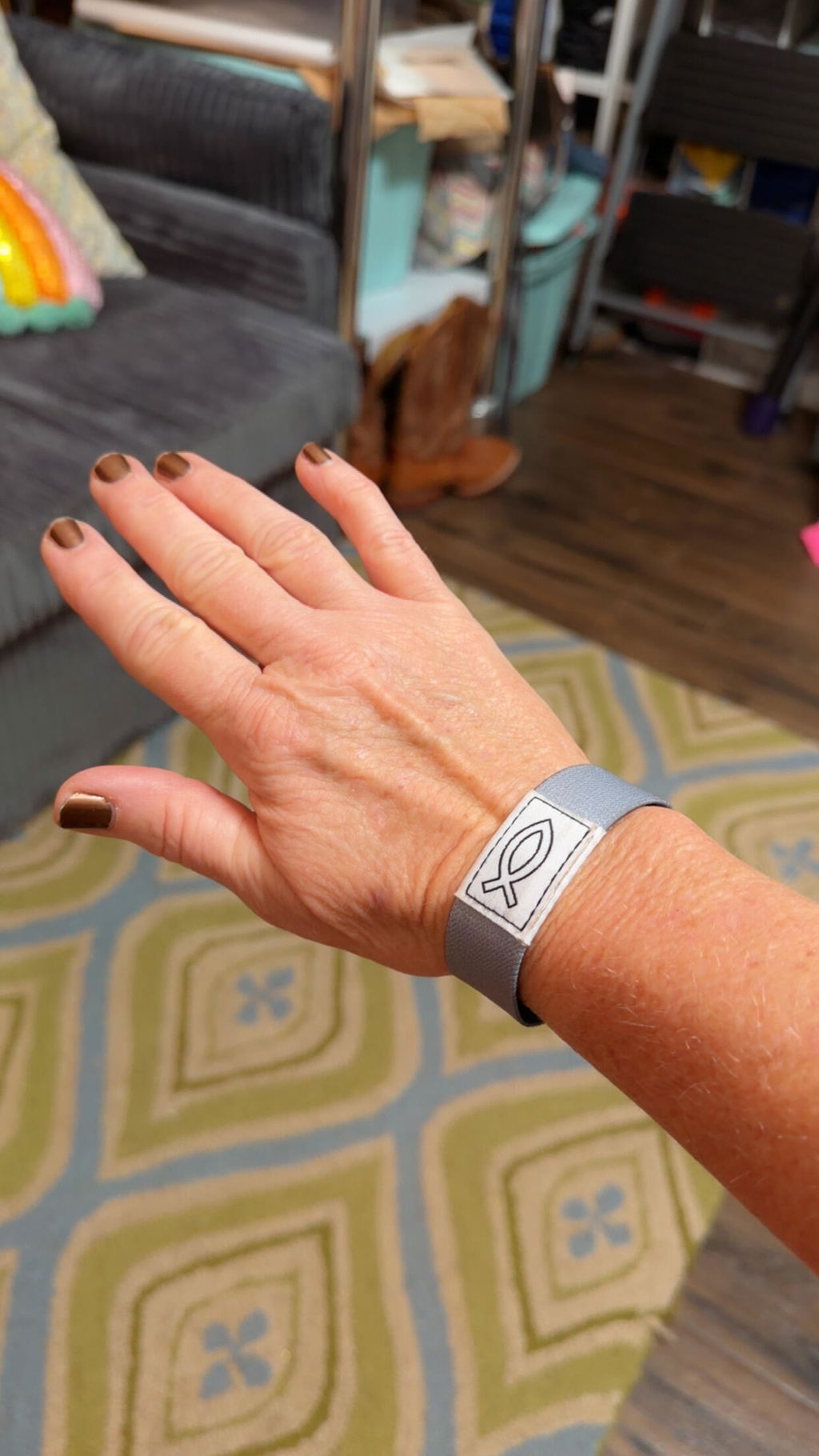
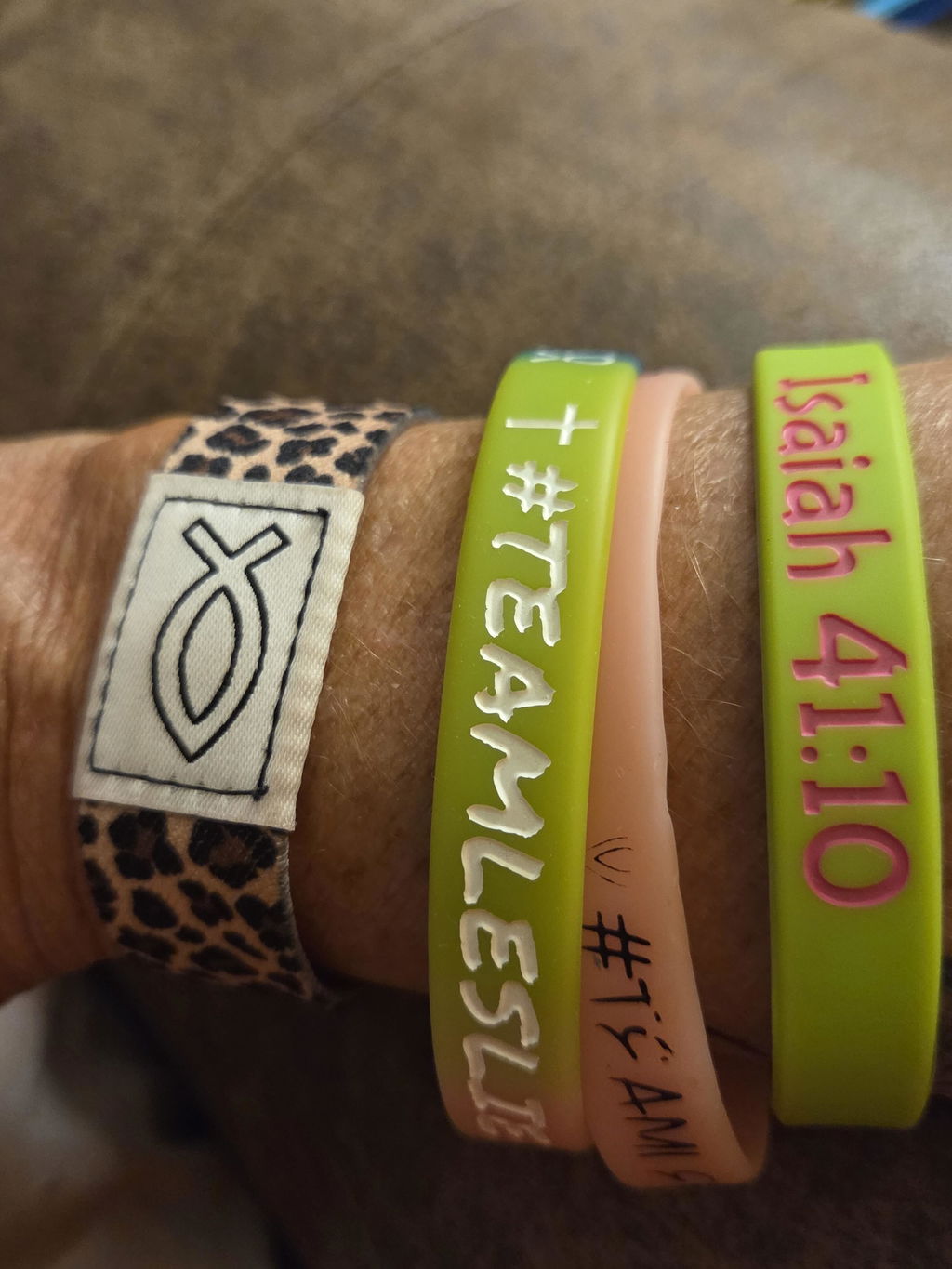
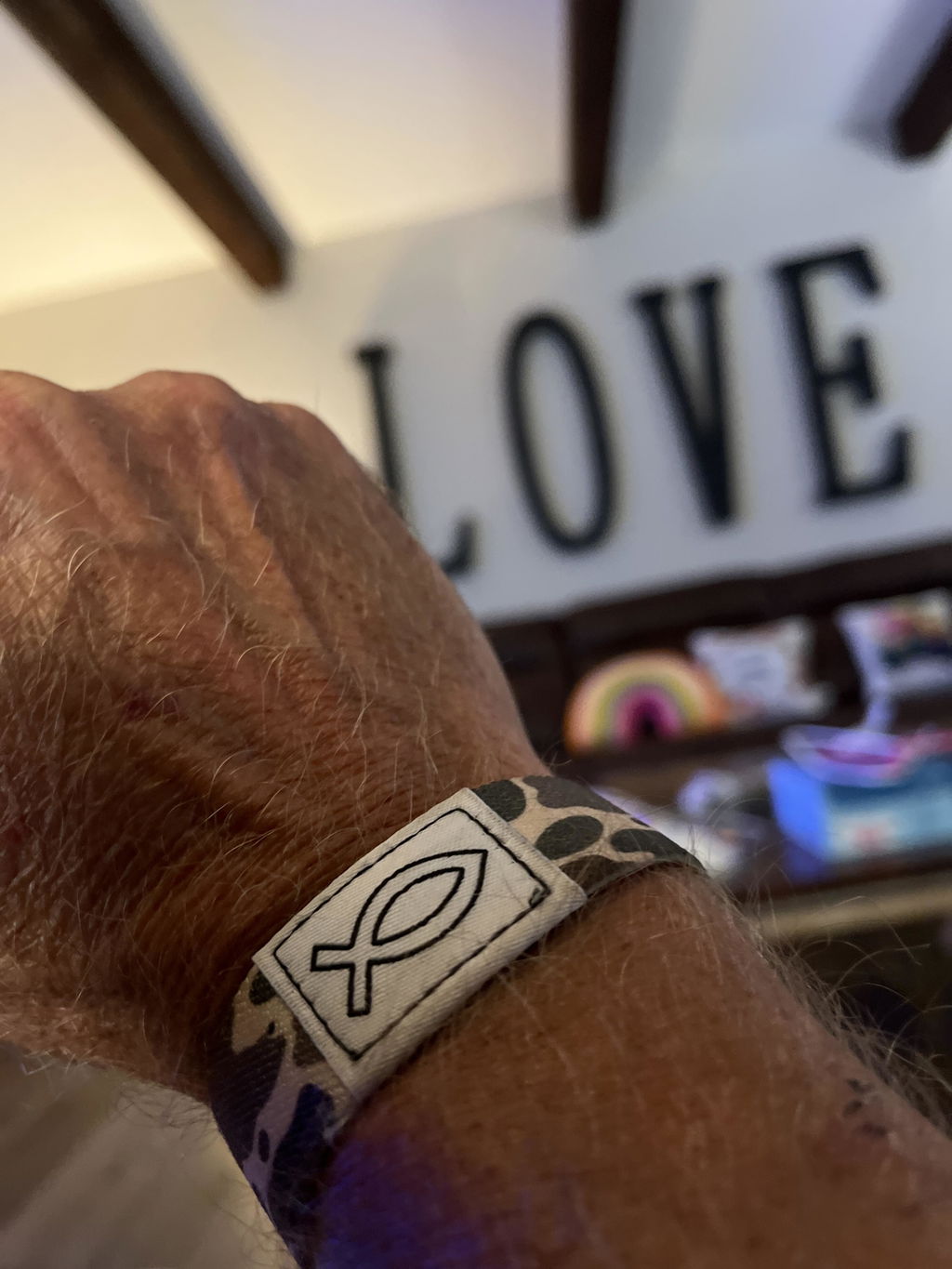
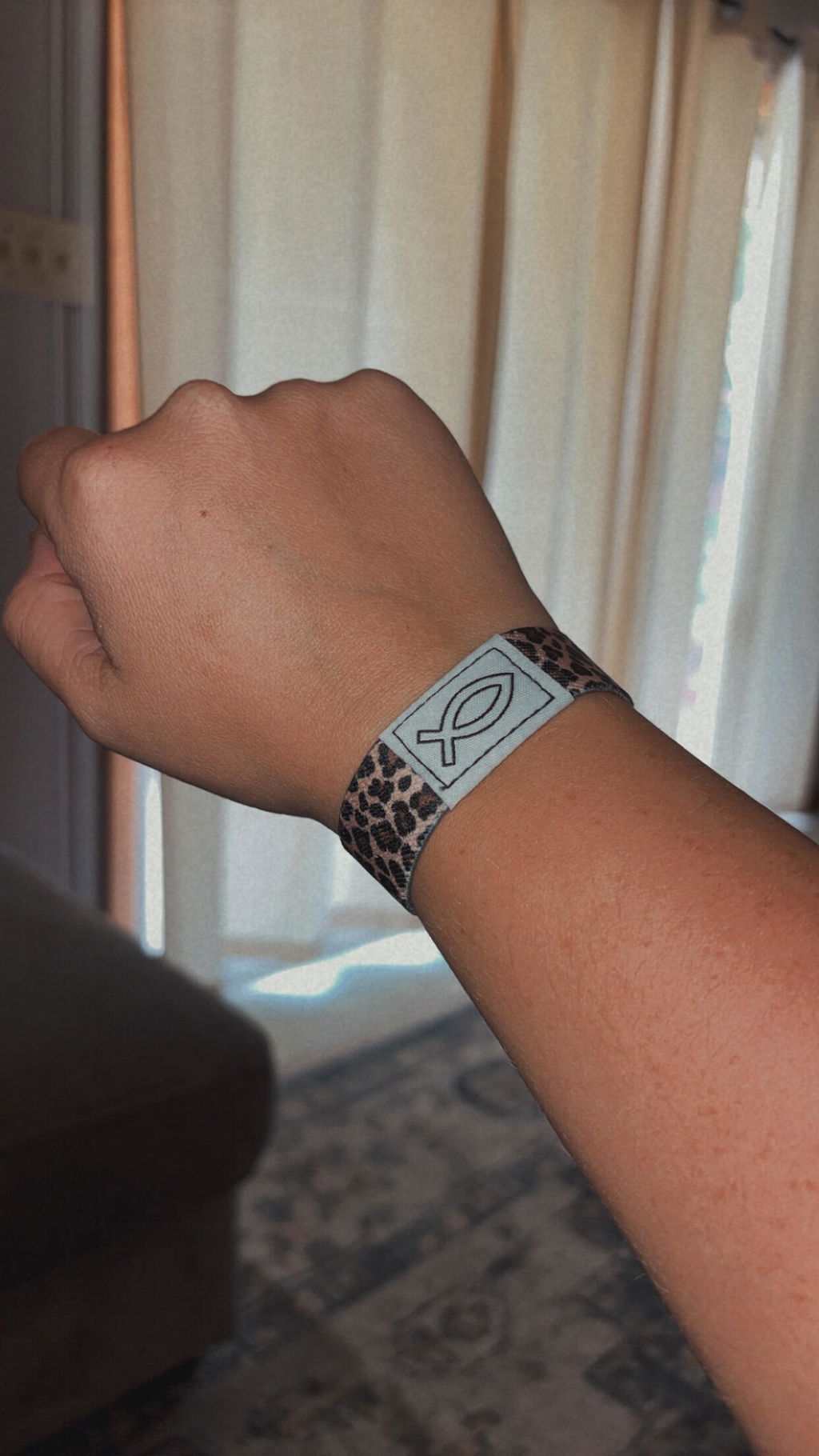
- You know which part of the bracelet contains the NFC chip.
- A thick, magnetic, or metal case is not blocking the signal.
NFC works only at very close range. A slow, steady hold is more reliable than striking the phone against the band or waving it quickly.
How to tap an NFC Bible bracelet with an iPhone
- Unlock the iPhone and keep the screen awake.
- Hold the top edge of the phone near the bracelet's NFC chip.
- Keep it still for a moment.
- When a notification appears, tap it to open the Scripture page in your browser.
Many newer iPhones can read NFC tags in the background without opening a separate scanner. Older models and specific settings may behave differently. Apple can change device capabilities over time, so consult Apple's current documentation for your exact model if you are uncertain.
How to tap an NFC Bible bracelet with an Android phone
- Unlock the phone and keep the screen awake.
- Make sure NFC is enabled if your model provides an NFC setting.
- Hold the back of the phone near the bracelet's chip.
- Move slowly around the center and upper-back area until the phone responds.
- Tap the notification to open the linked page.
Android manufacturers place NFC antennas in different locations. On one phone the reader may be near the camera; on another it may be closer to the center. The manufacturer's support page or device manual can identify the location for your model.
Do you need to download an app?
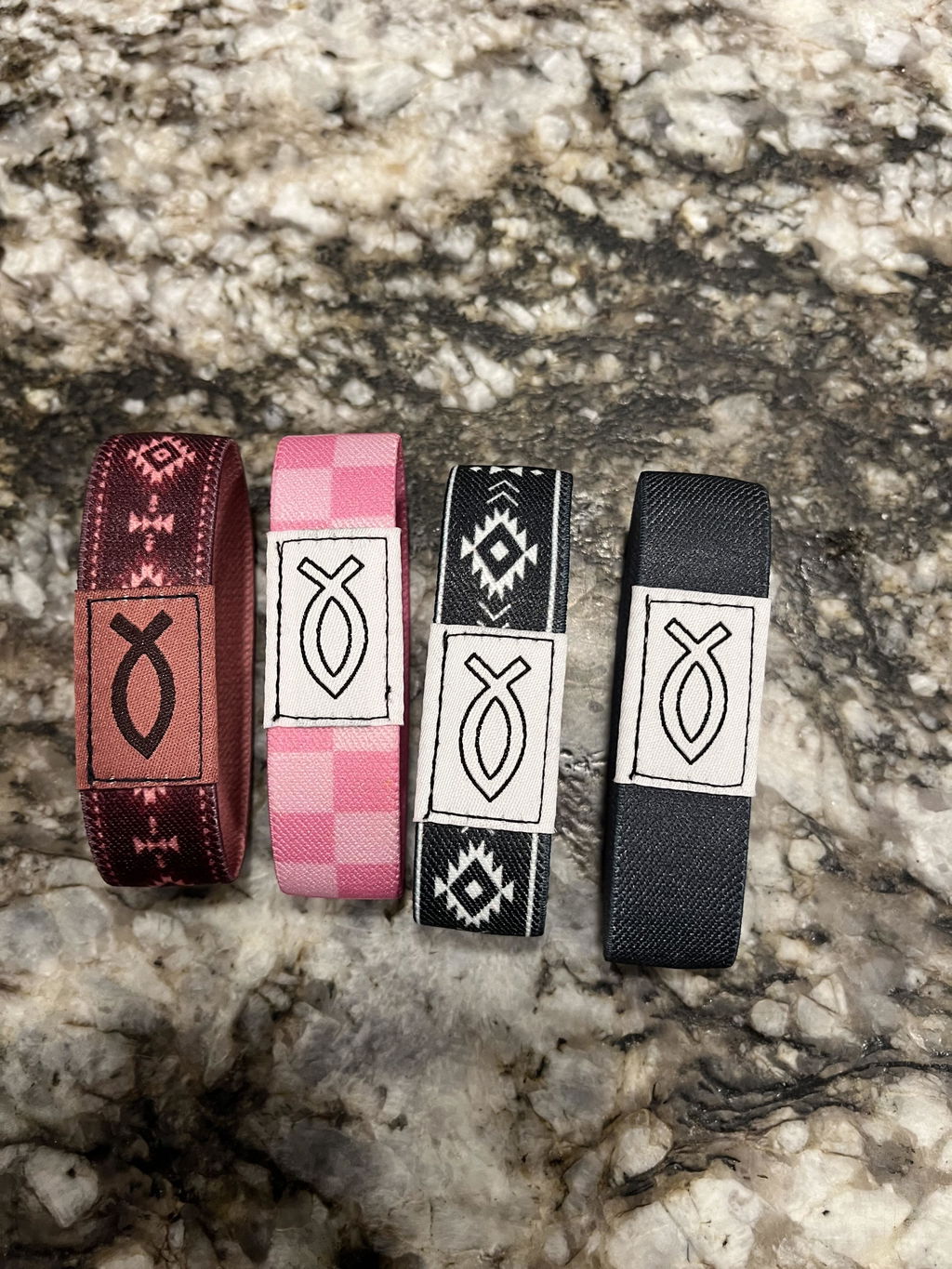
An NFC bracelet can link directly to a normal website, so an app is not always required. The Bible Band™ uses this browser-based approach. A compatible tap opens daily Scripture, a pastor-written devotion, guided prayer, audio, and a one-year Bible reading plan.
There is no Bible Band app to install and no subscription required for the included experience.
Why is my NFC Bible bracelet not working?
1. The phone is locked
Unlock the device and wake the screen before trying again. This prevents a phone from opening links accidentally while it is in a pocket or bag.
2. The reader is in a different location
Try the top edge on an iPhone. On Android, slowly test the upper back and center. Hold each position for a second rather than moving constantly.
3. The case is interfering
Most ordinary cases allow NFC to work, but very thick cases, metal plates, magnetic accessories, or wallets full of cards can interfere. Remove the case temporarily and test again.
4. NFC is disabled
Some Android devices provide an NFC switch in Settings or Quick Settings. Turn it on and retry. The exact menu varies by manufacturer.
5. The phone does not support compatible NFC reading
Not every phone can read NFC tags. Entry-level or older devices may omit the hardware. Check the official specifications for your model.
6. The phone has no data connection
The phone might detect the band but fail to load the content without Wi-Fi or cellular data. Connect to the internet and reopen the notification.
Use the QR-code backup
A QR code provides a simple alternative when NFC is unavailable or unreliable. Open the phone's camera, point it at the code, and tap the link that appears.
Every Bible Band package includes a QR-code backup. It reaches the same daily experience without requiring NFC. Keep the code somewhere useful, or take a clear photo for personal access.
Will tapping change or damage the bracelet?
Reading a passive NFC tag does not normally rewrite it, drain it, or require charging. The phone simply reads the link stored on the chip. Do not bend, cut, puncture, or expose the chip area to conditions beyond the product's care instructions.
Can someone else tap the same bracelet?
A compatible phone near the chip can usually read the link. That can make it easy to share the day's Scripture with a friend. Remember that an NFC bracelet is not a secure place for passwords, payment information, private records, or other sensitive data.
Create a repeatable Scripture rhythm
Once the tap feels natural, connect it to a consistent moment:
- Tap before opening social media in the morning.
- Tap during a lunch break.
- Tap with your family after dinner.
- Tap before bed and pray from the passage.
The technology removes a little friction, but the purpose is spiritual attention. Read the passage in context, consider what it teaches, and respond in prayer.
For a broader explanation of the technology, read What Is an NFC Bible Bracelet? For a practical routine, see How to Build a Daily Bible Reading Habit That Actually Lasts.
Related reading: For more buying guidance, see whether NFC bracelets require an app and our practical guide to NFC bracelet safety.
Put Scripture one tap away
Choose your Bible Band™ for a no-app daily experience with Scripture, devotion, prayer, audio, and a complete one-year Bible reading plan.